


软件

产品


This example implements a WebFigure. It deploys the WebFigure service and the page that has the WebFigure embedded in it on a single server. This configuration allows you to quickly reference your WebFigure from a JSP page with minimal configuration.
此示例实现WebFigure。 它在单个 服务器 上部署WebFigure服务和嵌入了WebFigure的页面。 此配置允许您使用最少的配置从JSP页面快速引用WebFigure。
| Caution This file uses native resources. It is critical that it exist in your Web server's class PATH only once. Embedding this file into Web applications causes errors. |
警告此文件使用本机资源。 至关重要的是,它只存在于Web服务器的classPATH中一次。 将此文件嵌入 Web应用 程序会导致错误。
2. Verify that your web server is properly configured by deploying the WebFigureQuickStart application.
通过 部署 WebFigureQuickStart应用程序验证是否正确配置了Web服务器
The following default figure page appears:
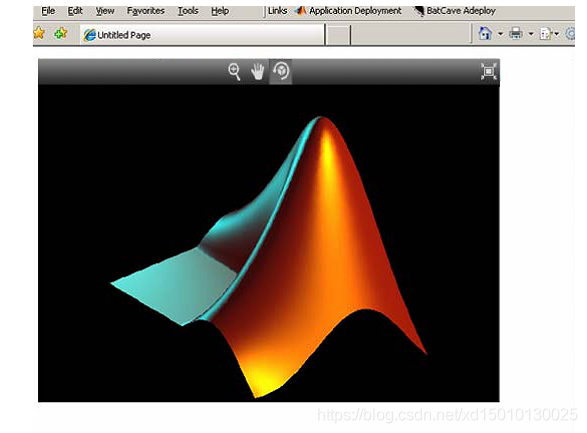
For example, to zoom in the figure, click the magnifying glass icon, then hover over the figure.
例如,要放大图形,请单击放大镜图标,然后将鼠标悬停在图形上方。
| Tip Once you have verified that your web server is properly configured you can undeploy the default WebFigure. |
验证Web服务器配置正确后,即可取消部署默认WebFigure。
3. Compile the getPlot function as a Java® package.
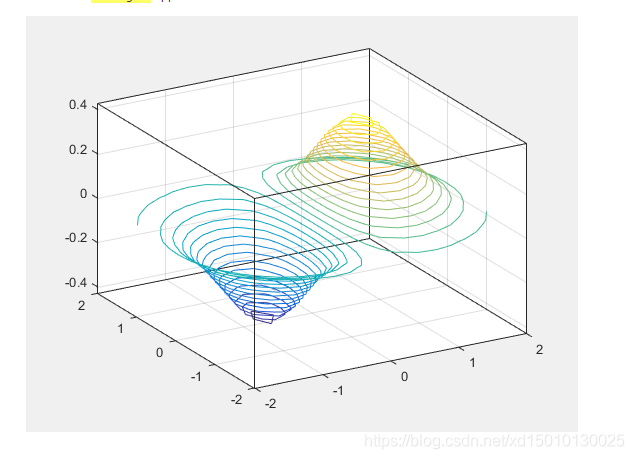
function df = getPlot() f = figure('Visible','off'); x = -2:0.25:2; [X,Y] = meshgrid(x); Z = X.*exp(-X.^2-Y.^2); contour3(X,Y,Z,30); df = webfigure(f); close(f);end4. Create a web application containing the jar file generated by MATLAB Compiler SDK™ and a JSP file to display the figure.
The generated jar file should be placed in the WEB-INF\lib folder of the web application. The JSP file should be in the root folder of the web application.
5. Open the WEB-INF\web.xml file and add the reference to WebFigureServlet.
<servlet> <servlet-name>WebFigures</servlet-name> <servlet-class> com.mathworks.toolbox.javabuilder.webfigures.WebFiguresServlet </servlet-class></servlet><servlet-mapping> <servlet-name>WebFigures</servlet-name> <url-pattern>/WebFigures/*</url-pattern></servlet-mapping>6. Copy MATLABROOT/toolbox/javabuilder/webfigures/webfigures.tld, the WebFigures customer tag handler file, to the WEB-INF folder of your web application.
7. In the JSP file, add a reference to the WebFigure tag by including the following line of code at the beginning of the file.
<%@ taglib prefix="wf" uri="http://www.mathworks.com/builderja/webfigures.tld" %>8. In the JSP file, add a reference to the package you created using MATLAB Compiler SDK.
<%@ page import="getPlot.Class1" %>9. In the JSP file, add references to the MATLAB Compiler SDK packages that implement WebFigures.
<%@ page import="com.mathworks.toolbox.javabuilder.webfigures.WebFigure" %><%@ page import="com.mathworks.toolbox.javabuilder.*" %>10. In the JSP file, add code to instantiate the deployed class.
<%! Class1 myDeployedComponent; %><%! public void jspInit() { try { //Instantiate the Deployed Component myDeployedComponent = new Class1(); } catch (Exception e) { e.printStackTrace(); } }%><%! public void jspDestroy() { if (myDeployedComponent!=null) { myDeployedComponent.dispose(); } myDeployedComponent = null; }%>
11. Return the WebFigure and attach it to tag for display.
<% if (myDeployedComponent!=null) { try { // Get the WebFigure from your function's output WebFigure webFigure = (WebFigure) ((MWJavaObjectRef)myDeployedComponent.getPlot(1)[0]).get(); // set it to the tag request.getSession().setAttribute("MyFigure", webFigure); } catch(ClassCastException e) { throw new Exception("Issue casting deployed components outputs to WebFigure", e); } catch (Exception e) { e.printStackTrace(); } } else { out.println("no go"); }%><wf:web-figure name="MyFigure" scope="session"/>12. Run your application.
Your custom WebFigure appears:
对于资料,希望能找到原版的,不仅正确,而且详细。
免责声明:本文系网络转载或改编,未找到原创作者,版权归原作者所有。如涉及版权,请联系删
 技术文档
技术文档
 推荐好文
推荐好文





 155-2731-8020