软件

产品


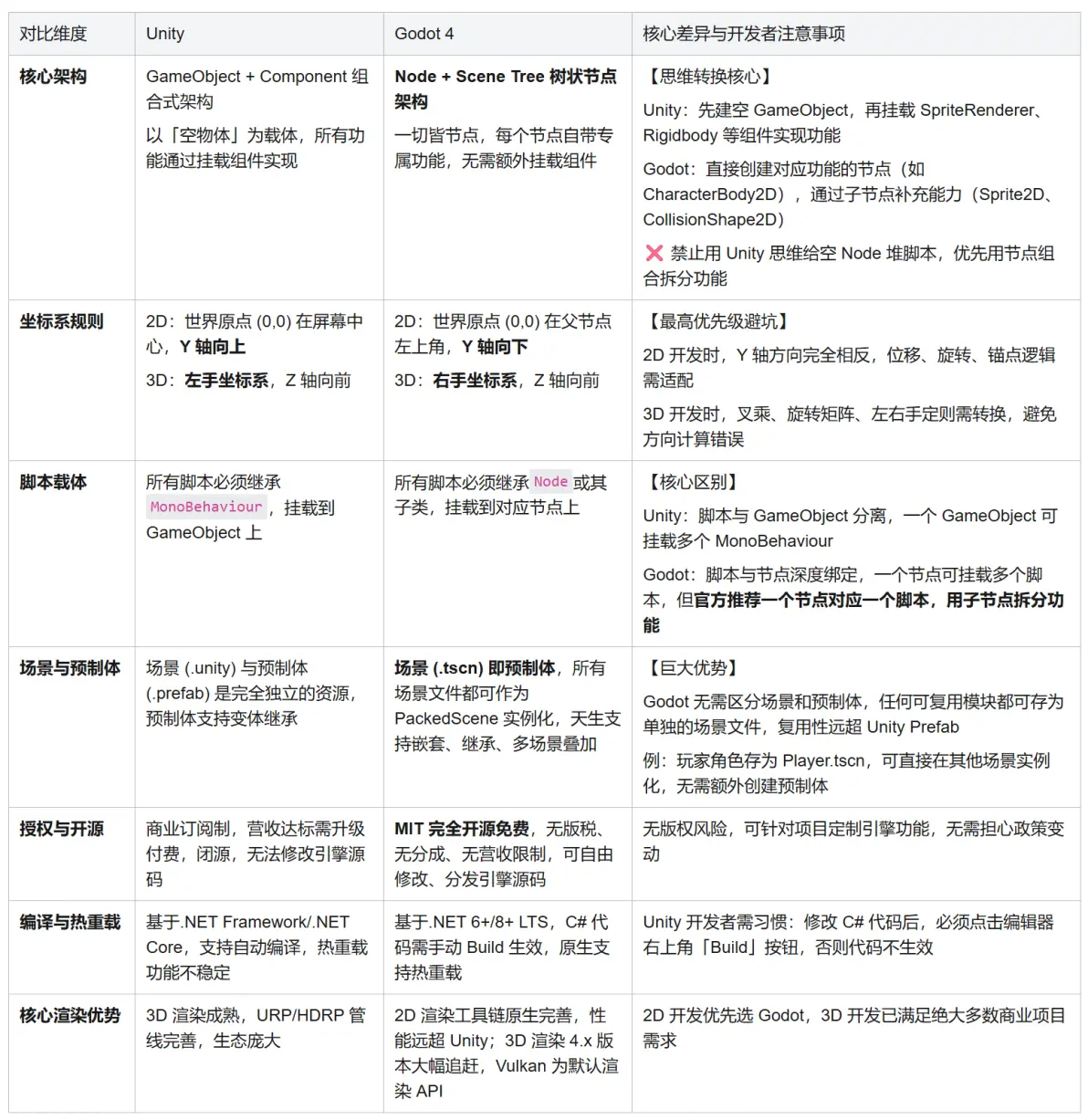
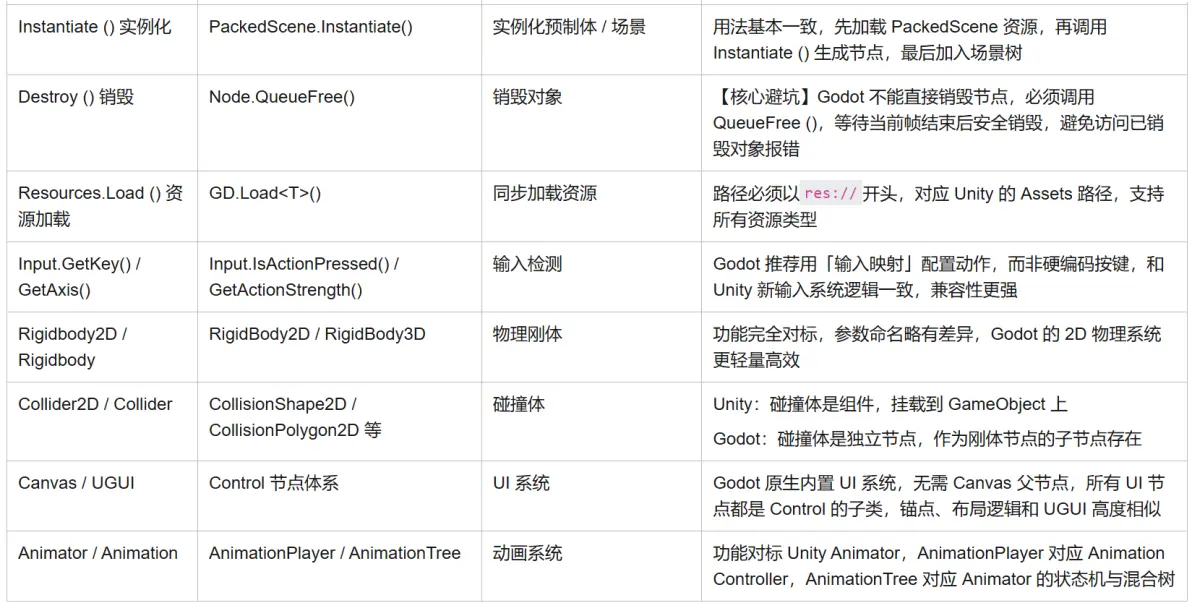
这是你转换开发思维的核心,90% 的迁移水土不服,都来自对架构底层差异的不理解。
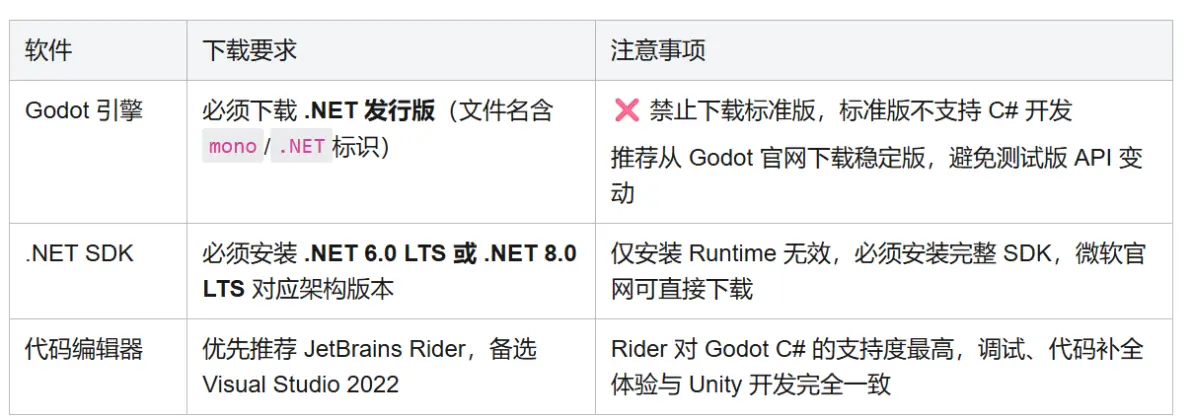
1. 必备软件下载
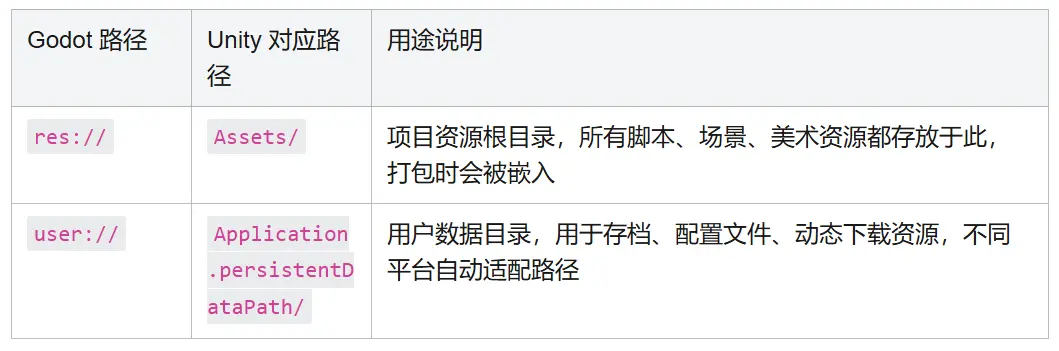
2. 编辑器与环境配置
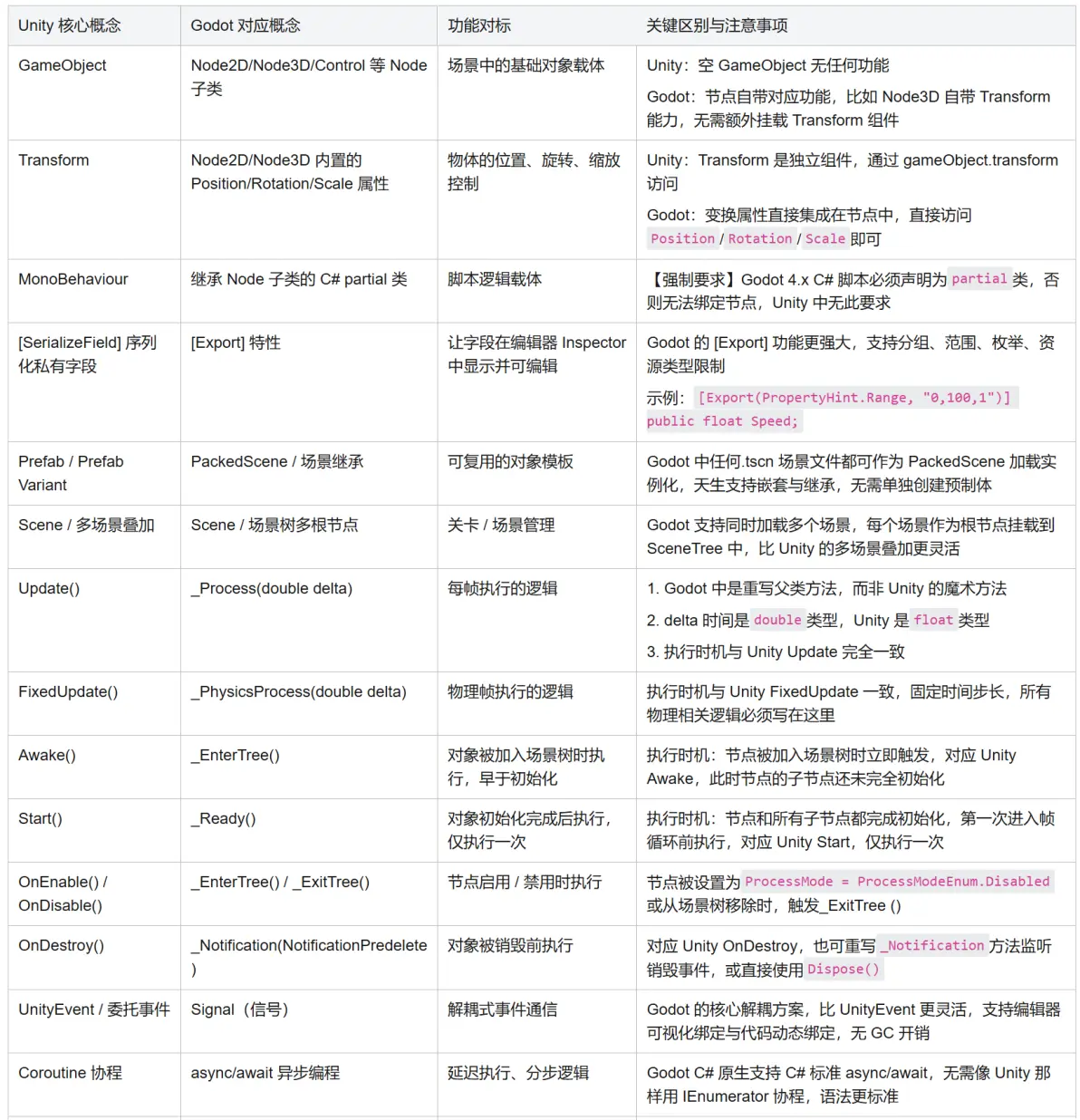
专为 Unity 开发者定制,所有概念精准对标,快速建立认知体系
需求:实现 2D 角色键盘移动,完全对标 Unity 的 MonoBehaviour 开发逻辑
Unity 原版参考写法
代码块
using UnityEngine;

public class Player : MonoBehaviour
{
    [SerializeField] private float moveSpeed = 300f;
    private Rigidbody2D rb;
    private Vector2 moveInput;

    private void Awake()
    {
        rb = GetComponent<Rigidbody2D>();
    }

    private void Update()
    {
        moveInput.x = Input.GetAxisRaw("Horizontal");
        moveInput.y = Input.GetAxisRaw("Vertical");
        moveInput.Normalize();
    }

    private void FixedUpdate()
    {
        rb.velocity = moveInput * moveSpeed * Time.fixedDeltaTime;
    }
}
Godot C# 对应实现(零学习成本适配)
代码块
using Godot;

// 必须声明为partial类,继承CharacterBody2D(对标Unity的Rigidbody2D+CharacterController)
[GlobalClass] // 让脚本在编辑器中可见,可直接挂载到节点上
public partial class Player : CharacterBody2D
{
    // 导出字段,对标Unity的[SerializeField],编辑器可见可编辑
    [Export] public float MoveSpeed = 300f;
    private Vector2 _moveInput;

    // 对标Unity Awake(),节点加入场景树时执行
    public override void _EnterTree()
    {
        // 初始化逻辑,无需获取刚体组件,节点本身自带刚体能力
        GD.Print("玩家节点加入场景树");
    }

    // 对标Unity Start(),节点和子节点初始化完成后执行,仅触发一次
    public override void _Ready()
    {
        GD.Print("玩家初始化完成");
    }

    // 对标Unity Update(),每帧执行
    public override void _Process(double delta)
    {
        // 获取输入,推荐用输入映射,对标Unity Input Manager
        _moveInput.X = Input.GetActionStrength("move_right") - Input.GetActionStrength("move_left");
        _moveInput.Y = Input.GetActionStrength("move_down") - Input.GetActionStrength("move_up");
        // 归一化,防止斜向移动速度过快
        _moveInput = _moveInput.Normalized();
    }

    // 对标Unity FixedUpdate(),物理帧执行,所有移动逻辑必须写在这里
    public override void _PhysicsProcess(double delta)
    {
        // 设置移动速度,delta是double类型,强转float即可
        Velocity = _moveInput * MoveSpeed * (float)delta;
        // 执行移动,对标Unity的rb.MovePosition()
        MoveAndSlide();
    }
}
脚本使用步骤
第二部分将完整讲解:
免责声明:本文系网络转载或改编,未找到原创作者,版权归原作者所有。如涉及版权,请联系删
 技术文档
 推荐好文


 155-2731-8020