



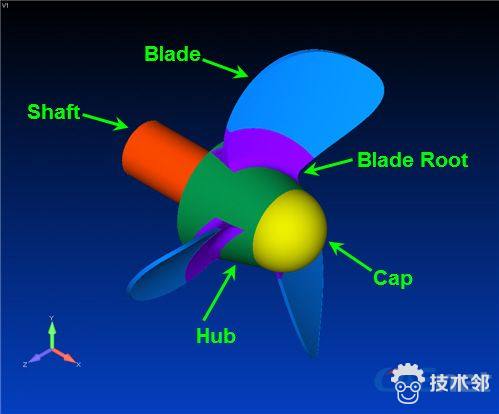
Figure 1 Schematic of propeller model
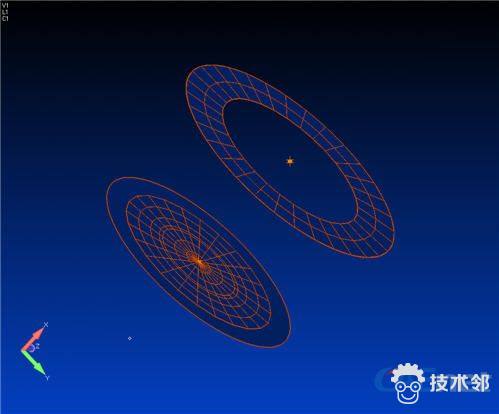
As shown in Figure 2, the first glue region is between the blade and blade root and the second one is between the blade root and outer surface of the hub. Two contact regions are also defined between the bottom of the cap and the top of the hub as well as the top of the shaft and the bottom of the hub. In addition, a bolt element (not shown in Figure 2) is employed to connect the cap and the shaft with a preload.
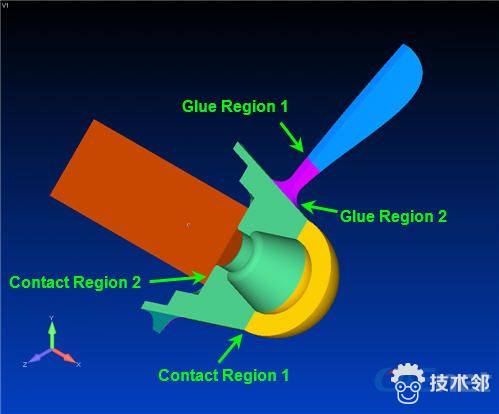
Figure 2 Locations of contact and glue regions
We demonstrate the ease of using the direct Femap interface in ADINA with the following step-by-step analysis. Step 1: Import the geometry model into Femap and clean it up Step 2: Define the material properties and mesh with 3D solid elements
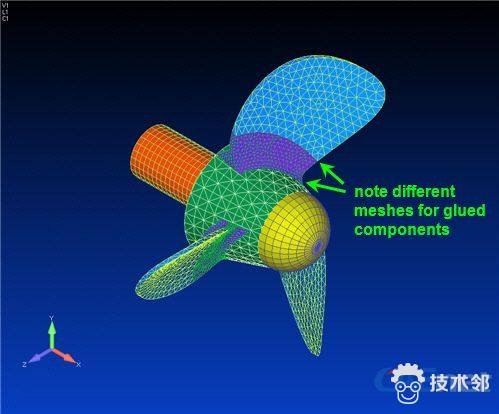
Step 3: Create bolt element and rigid elements that connect the cap and hub to the bolt element
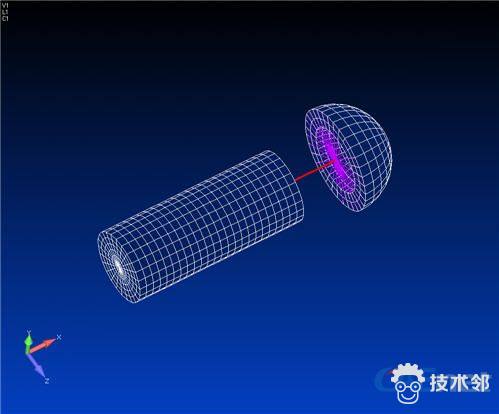
Step 4: Apply bolt preload, body load of rotational velocity in global X direction and pressure load on the three blades
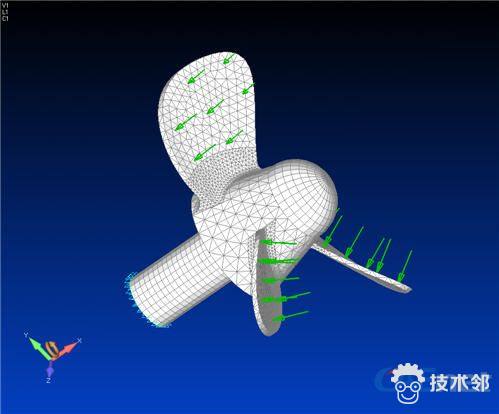
Step 5: Apply constraints at the bottom of the shaft and fix the rotation DOFs of the bolt element Step 6: Define the glueing property with default values. Create the glue regions and the corresponding connectors of glueing
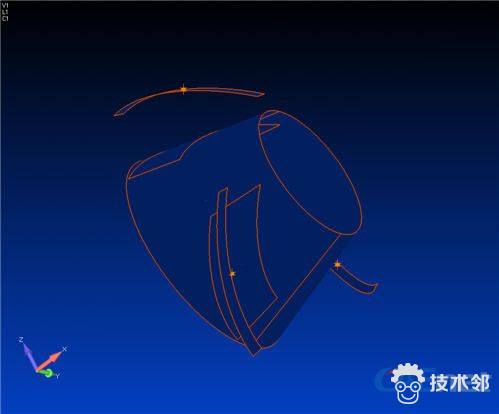
Step 7: Define the contact property with "Friction Param 1=0.2". Create contact regions and the corresponding connectors of contact
Step 8: Perform the nonlinear static analysis using the direct Femap interface in ADINA Enter the Job Name and Heading (if desired) in the ADINA Analyze window, select options as shown, and run ADINA to solve the model.
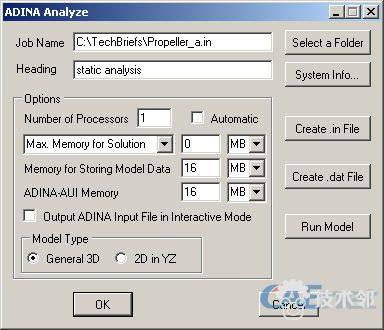
Step 9: Define settings for frequency/modes analysis Set "Number of Frequency/Mode Shapes" equal to 10.


 技术文档
技术文档
 推荐好文
推荐好文







 155-2731-8020